
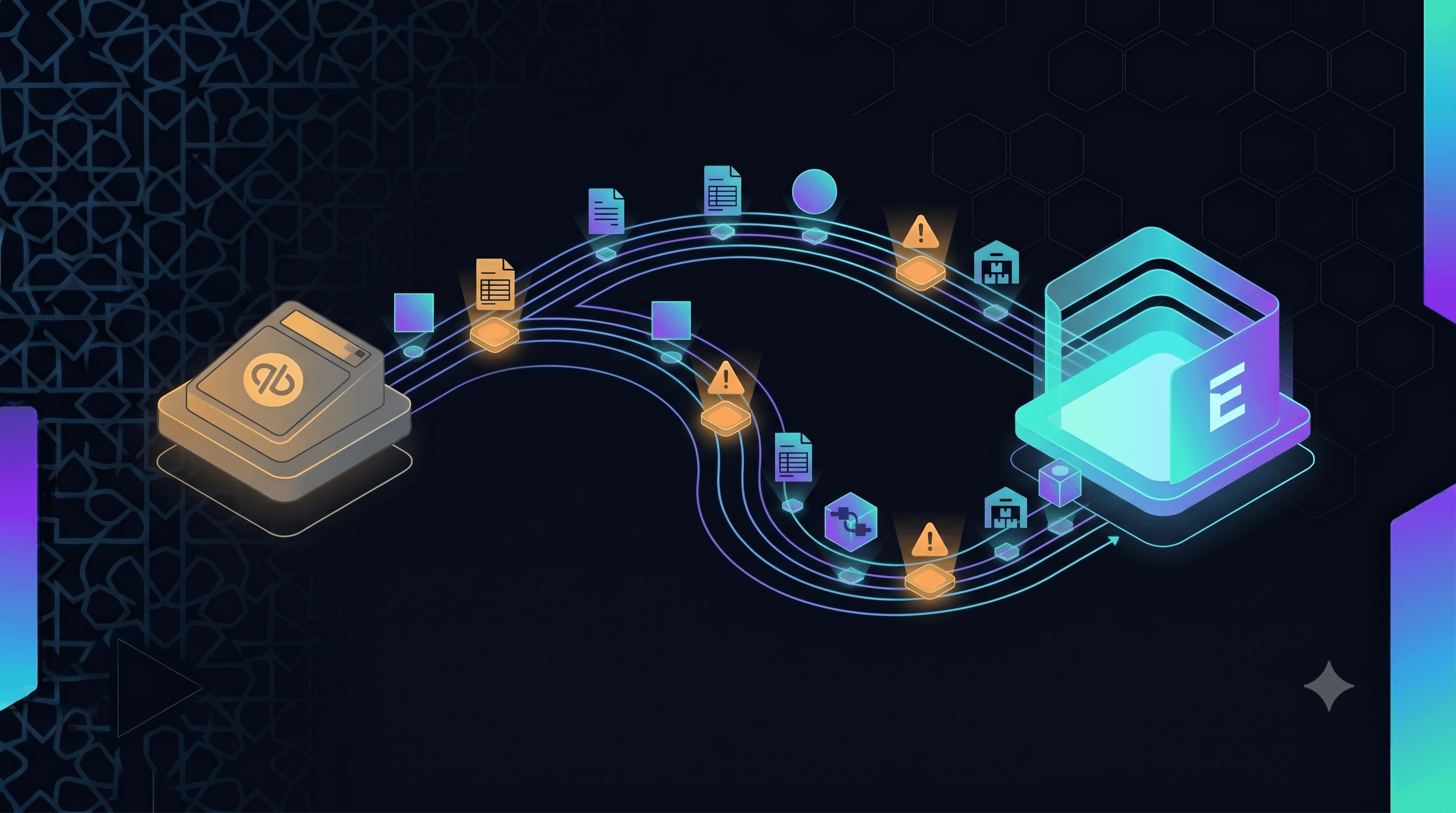
QuickBooks to ERPNext Migration: What Goes Wrong
Every QuickBooks to ERPNext migration we have done has surfaced at least one significant data quality issue that the client did not know existed. The migration process is as much about finding and fixing problems in the source data as it is about moving records between systems.
What Migrates Cleanly
The following data migrates from QuickBooks to ERPNext with low risk when exported via the QuickBooks IIF or CSV export tools: Customer list (name, contact details, payment terms). Supplier/vendor list. Chart of accounts (with mapping to ERPNext account types). Open accounts receivable (unpaid invoices). Open accounts payable (unpaid bills). Item list (basic product/service definitions). Employee list (basic records if using QuickBooks Payroll).
What Goes Wrong: The Six Most Common Migration Failures
1. Duplicate customers and suppliers. QuickBooks allows free-text customer names, so 'Acme Ltd', 'Acme Limited', 'ACME LTD' and 'Acme' are all separate customer records. We routinely find 15-30% duplication in customer lists. Fix: deduplicate and merge before migration, not after.
2. Chart of accounts doesn't map cleanly. QuickBooks account types (Income, Expense, Other Income) don't map 1:1 to ERPNext's account type taxonomy. Each account requires a manual type assignment in ERPNext. Fix: export the full COA and manually assign ERPNext account types before import.
3. Opening balances don't reconcile. If the QuickBooks trial balance at the cutover date doesn't match what gets entered as opening balances in ERPNext, the financial reports will never be right. Fix: run a trial balance in QuickBooks on the cutover date, export it, and verify every line matches the ERPNext opening entries before proceeding.
4. Inventory valuation method mismatch. QuickBooks defaults to FIFO or Average Cost depending on version. ERPNext supports FIFO, LIFO, Moving Average, and Serial/Batch. If the valuation method changes at migration, the stock valuation will differ from QuickBooks and create accounting discrepancies. Fix: decide on the ERPNext valuation method before migration and ensure the opening stock entries use the same method.
5. Tax configuration errors. QuickBooks tax items don't map directly to ERPNext tax templates. Every tax code (VAT 20%, Zero-rated, Exempt, Reverse charge) needs to be recreated as an ERPNext Tax Template and tested with a live transaction. Fix: build the tax template library in staging and test every tax code with a sample transaction before go-live.
6. Historical transaction import attempts. Some clients want to import 3-5 years of historical invoices and payments into ERPNext for reporting continuity. This is almost always a mistake. Historical transactions create complexity, risk introducing data errors, and slow down the system. Fix: import opening balances only. Keep QuickBooks accessible (read-only) for historical reference for 12 months post-migration.
The Techseria Migration Approach
Our QuickBooks to ERPNext migrations follow a fixed 6-step process: 1. Data extraction and audit (Week 1). 2. Data cleaning and deduplication (Week 2). 3. ERPNext configuration and master data import (Weeks 3-4). 4. Parallel running period — both systems active (2-4 weeks). 5. Opening balance entry and verification (cutover week). 6. Go-live and 30-day hyper-care support.
The parallel running period is non-negotiable. It is the only way to catch configuration issues before they affect live transactions.
Ready to migrate from QuickBooks to ERPNext? Book a Strategy Session with Techseria — we'll audit your QuickBooks data and give you an honest assessment of migration complexity within 5 days.
Ready to accelerate your operations?
See how custom AI solutions, ERPNext integration, and workflow automations can lower your operating costs. Book your free 30-minute Workflow Audit with a senior engineer.